
TABLE OF CONTENTS
Share on Social Media
Related Blogs

Unlock the Power of Automation: Explore Selenium with BDD Framework (Cucumber) for Efficient Testing
Read More: Unlock the Power of Automation: Explore Selenium with BDD Framework (Cucumber) for Efficient Testing
How to Start with Enterprise Mobile and IOT Strategy
Read More: How to Start with Enterprise Mobile and IOT Strategy
How to create and deploy Python API in Docker?
Read More: How to create and deploy Python API in Docker?
Enhancing Business Solutions with Retrieval-Augmented Generation and Generative AI
Read More: Enhancing Business Solutions with Retrieval-Augmented Generation and Generative AI
If you’re a programmer or techie, you have setup for all your need software in your machine. So it difficult, all software needed depending OS and run applications. Now you can install the only docker and run all need applications in docker without depending os and also docker you can be installed on Windows, Linux, Mac, Cloud, Serverless, etc. so now you have all question what is docker?
Docker is a tool designed to make it easier to create, deploy, and run applications by using containers. Now in your mind say what the container is?
A container is a standard unit of software that packages up a code and all its dependencies so the application runs quickly and reliably from one computing environment to another.
“In a way, Docker is a bit like a virtual machine. But unlike a virtual machine, rather than creating a whole virtual operating system, Docker allows applications to use the same Linux kernel as the system that they’re running on and only requires applications be shipped with things not already running on the host computer. This gives a significant performance boost and reduces the size of the application.”
Difference Between Docker and VM (Virtual Machine)
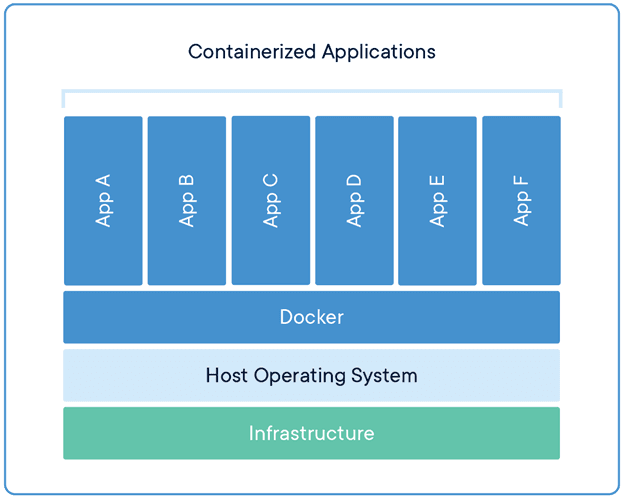
Containers
multiple containers can run on the same machine and share os kernel with other containers. each running as isolated processes in userspace. and also container take up less space then VM’s.
Virtual Machines
The Hypervisor is Allow Multiple VM run on a single machine. Each VM includes a full copy of an OS and the VM is use much memory. VM can also be slow to boot.
Docker, The Good Things
1. Fast Boot: Takes seconds to start a container, so you need to restart or deploy new versions, and your new instance is up in seconds.
2. The container uses fewer resources: since you don’t have a full OS, and they all share the same kernel, they are lightweight.
3. The containers are small, better than VM: They start from the end of Megabytes Up, where VMs start from Gigabytes. so you current server can host way more containers.
Supported platform
Docker’s native platform is Linux, as it’s based on features provided by the Linux kernel. However, you can still run it on macOS and windows. the only difference is that on macOS and Windows, Docker is encapsulated into a tiny virtual machine.
Installation
You can check out the installation instructions for Docker here.
Terminology
1. Image – the basic element for every container. When you create an image, every step is cached and can be reused. Depending on the image, it can take some time to build. Containers, on the other hand, can be started from images right away.
2. Container – a running instance that encapsulates the required software. Containers are always created from images. A container can expose ports and volumes to interact with other containers or/and the outer world.
3. Port – a TCP/UDP port in its original meaning. To keep things simple, let’s assume that ports can be exposed to the outer world.
4. Volume – can be described as a shared folder. Volumes are initialized when a container is created. Volumes are designed to persist data, independent of the container’s lifecycle.
Example 1. Redis Install in Docker
It’s time to run your first container:
“First Pull Image in Docker:
docker pull redis
Check List Of Images Command:
docker images”

- Start a Redis instance: docker run –name redisContainer -d redis – name: name of container -d: it is image name you pull in Docker.
- Alternate add Port to access outside of the container:
docker run –name redisContainer -p 6379:6379 -d redis
-p: add port number you can access outside of the container
“Check run container in Docker: docker ps”

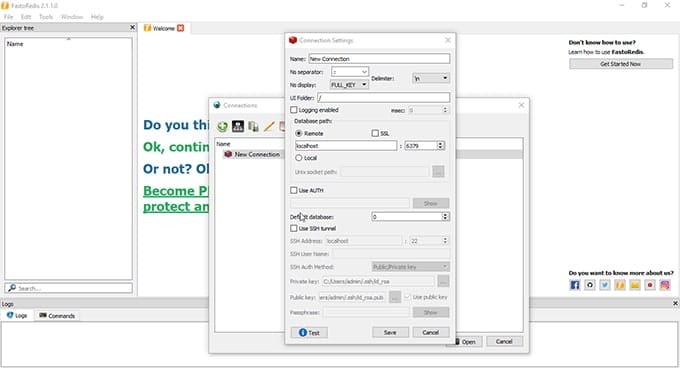
Connection in Your Computer:
Share on Social Media
Related Blogs
Accelerate ReactJS Deployment: A Quick Guide to Azure DevOps Pipeline
Read More: Accelerate ReactJS Deployment: A Quick Guide to Azure DevOps Pipeline
Secure Your React Native App with Keycloak Authentication: Comprehensive Guide
Read More: Secure Your React Native App with Keycloak Authentication: Comprehensive Guide
All About Docker file and Docker Compose: The Ultimate Guide for Developers
Read More: All About Docker file and Docker Compose: The Ultimate Guide for DevelopersHow to create and deploy Python API in Docker?
Read More: How to create and deploy Python API in Docker?Stay ahead of the curve
Get the latest insights, tutorials, and industry news delivered straight to your
inbox. Join 10,000+ developers and tech leaders.